
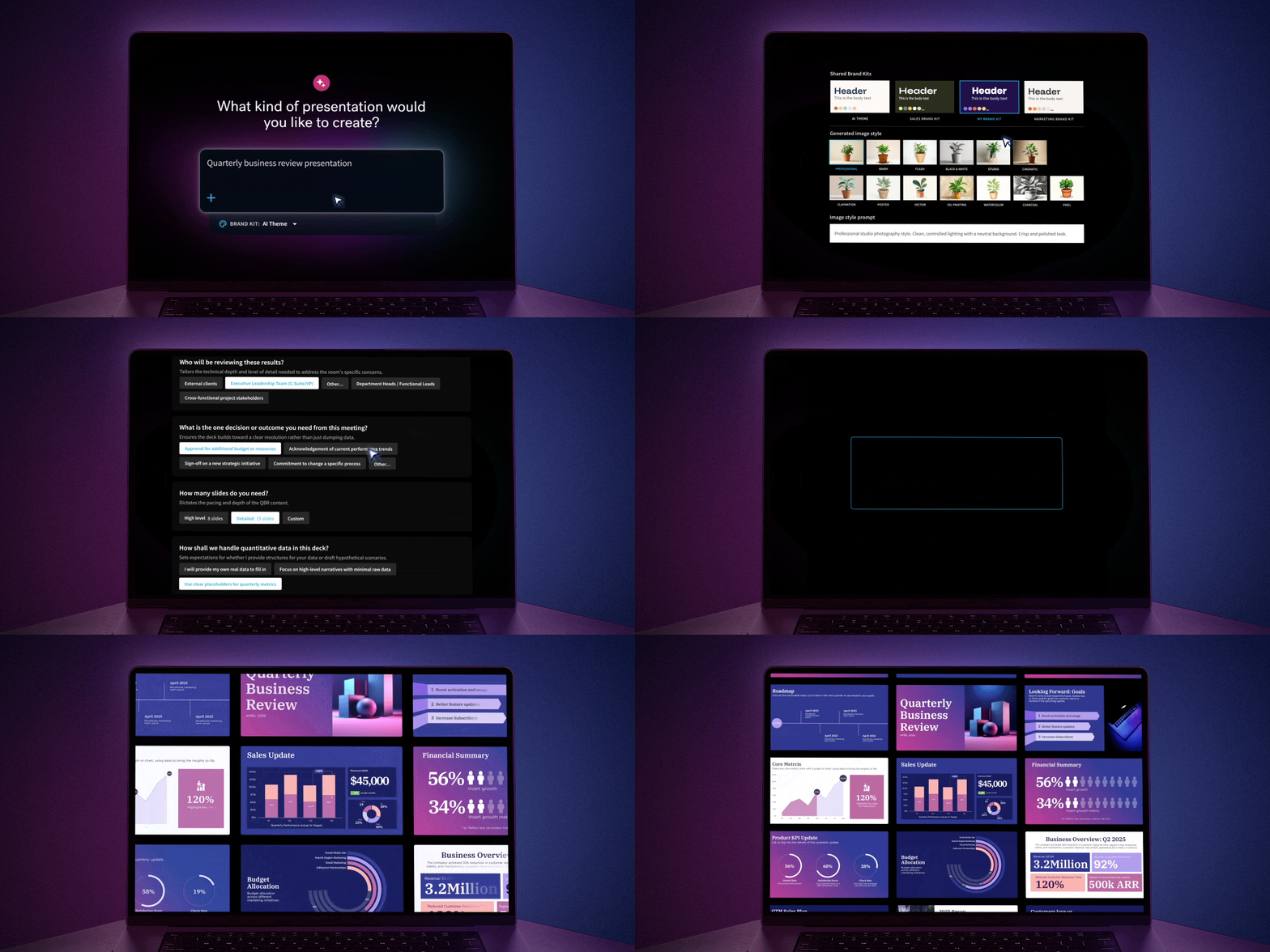
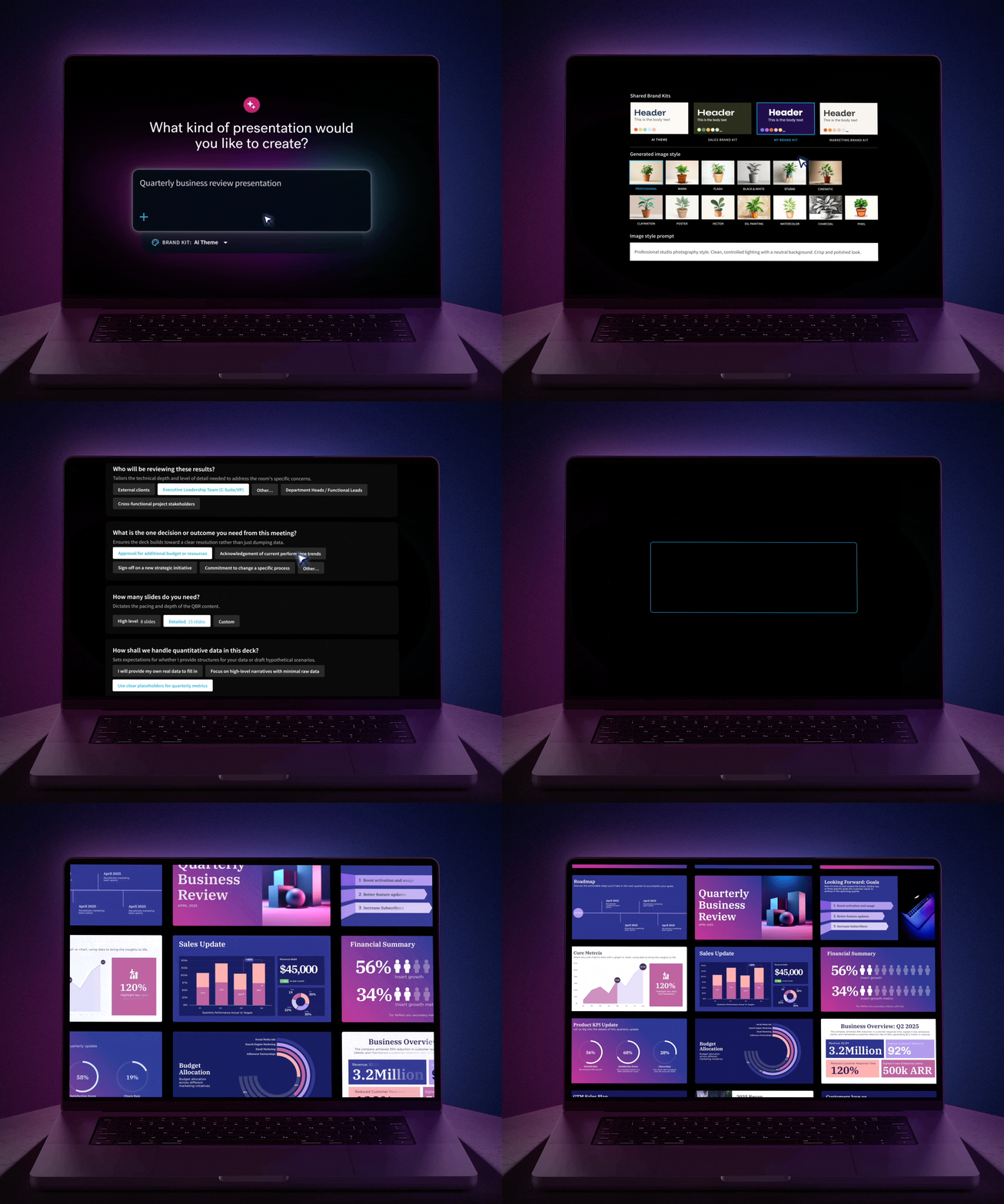

When Beautiful.ai introduced the Create with AI Workflow, the goal was to fix a common problem with AI-generated presentations: getting a deck quickly is useful, but getting the right deck matters more.
The original workflow moved presentation creation away from a one-shot prompt-to-deck experience. Users could start with a topic, outline, or supporting context, review the story before generating slides, and continue refining individual slides once they reached the editor.
Now, that workflow is getting more responsive to how people actually start.
The updated Create with AI Workflow adapts based on how much direction you already have. If you have only a topic, Beautiful.ai can ask for more context before drafting the presentation. If you arrive with a finished outline, you can move more quickly toward generation instead of going through steps you do not need. Brand decisions also happen earlier, so the presentation can follow your brand guidance from the start.
The idea is simple: better direction before generation gives AI less room to guess. That means a stronger first draft and less time fixing the presentation afterward.
1. What’s New With the Updated Workflow
The biggest change is that Create with AI no longer assumes everyone needs the same path from prompt to presentation.
Previously, someone entering a rough topic and someone pasting a detailed slide-by-slide outline moved through much of the same experience. Beautiful.ai could refine either input into an outline, but the workflow did not fully account for how different those starting points were.
The updated Create with AI Workflow changes that.
- If you start with a topic, Beautiful.ai can ask a few questions before drafting the outline. Those questions help establish what you are making, who it is for, and what you want the presentation to accomplish. Instead of making the AI infer those details from a short phrase, you give it more useful context before it starts writing.
- If you bring an outline, you have a faster route. You can continue refining it when you want help, or move directly toward presentation generation when the structure is already where you want it. Skipping an unnecessary outline preview also helps preserve the input you already spent time creating.
- If your organization uses a Brand Kit, those choices appear earlier in the process. Brand direction can influence more than the finished slide styling. Brand tone, language, imagery, and presentation instructions can inform the presentation from the beginning.
That builds on the core Create with AI idea: the system should adapt to your input instead of forcing your input into a fixed process. Beautiful.ai’s current Create with AI experience already supports prompts, complete outlines, and source material as starting points.
2. More Direction Before You Generate
A vague input leaves a lot of decisions to the AI.
“Create a presentation about our Q4 results” does not tell the system whether the audience is the executive team or the entire company. It does not say whether the goal is to review performance, secure approval for a new budget, or explain why a target was missed.
Those distinctions affect the presentation.
With the updated Create with AI Workflow, a broad topic can become the start of a short conversation before an outline is generated. A few answers about audience, purpose, or content priorities can give the system a much clearer assignment.
That is useful for people who know what they need to present but have not figured out the structure yet. You do not have to write an expert prompt before Beautiful.ai can help. You can start with the idea and add direction as the workflow asks for it.
The opposite is true for users who already did that thinking somewhere else. Maybe you drafted the narrative in ChatGPT or Claude. Maybe your team has already approved an outline. Maybe the presentation is based on a brief that spells out every section.
In that case, more AI intervention is not automatically helpful. The upgraded workflow can use the outline you supplied and let you decide whether it needs another refinement pass or is ready to become slides.
The original Create with AI Workflow was designed around this principle of preserving context, including long prompts, source documents, and pasted outlines. The updated Create with AI Workflow makes the path through that workflow more sensitive to the amount of context you bring with you.
3. Stay in Control of the Story
AI presentation creation works better when you can make decisions before those decisions become ten fully designed slides.
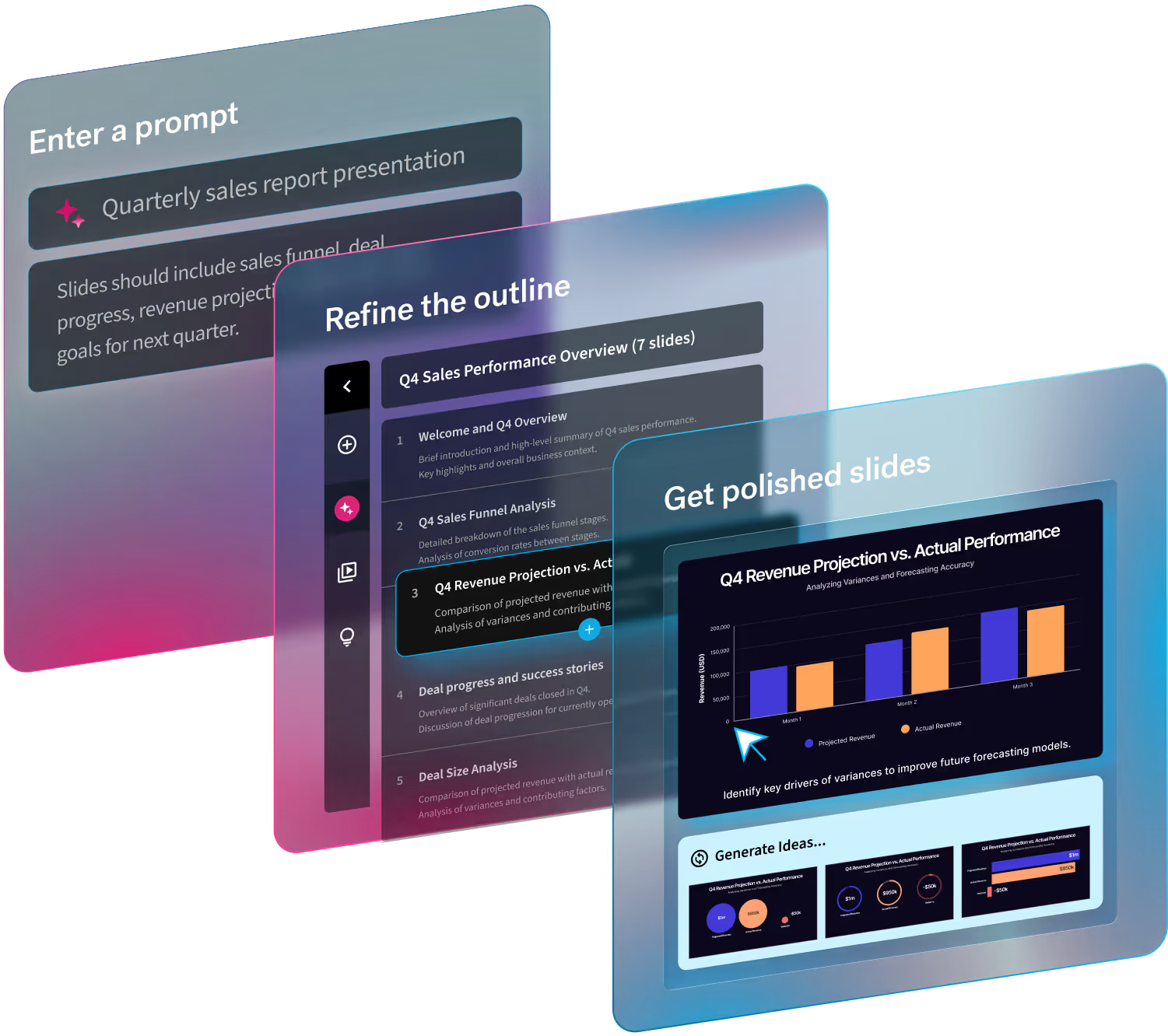
That was already part of the logic behind the Create with AI Workflow. Instead of jumping straight from a prompt to a finished deck, Beautiful.ai lets users work with the presentation structure first, edit slide-level content, and refine the narrative before generating the design.
The upgraded workflow adds another layer of control before that outline exists.
- If you are still working through the idea, the workflow can help clarify it. If the story is already written, you can keep it intact and move forward. There is less pressure to find one perfect prompt that anticipates every decision.
- Once you do reach the outline stage, you can still change the structure directly or work with AI to revise it. The existing Create with AI tools support tasks such as adding and removing slides, changing copy, splitting dense sections, and adjusting the overall flow before slide design.
- After generation, control becomes more local. Beautiful.ai lets users explore alternate Smart Slide layouts, work on individual slides, edit the prompt behind a slide, preserve exact text when needed, or regenerate an image without rebuilding the presentation.
The result is a workflow where AI can help at several points without taking over every decision.
Brand controls follow the same approach. Choosing a Brand Kit earlier means Beautiful.ai has brand context before it begins shaping the presentation, resulting in better presentations, faster.
4. Less Rework, Faster Results
“Fast generation” and “fast completion” are not always the same thing.
A deck that appears in a minute can still take an hour to repair if the story is wrong. Changing the presentation from a team update into an executive recommendation after every slide has been generated is much more work than establishing that goal at the start.
The upgraded workflow is meant to move more of those decisions upstream.
- Starting from a topic? Clarify the assignment before the outline is written.
- Already have the story? Keep moving instead of asking AI to reinterpret it unnecessarily.
- Working under brand requirements? Apply those instructions while the presentation is being formed, rather than treating them as cleanup.
That is also why the existing workflow supports slide-level iteration after generation. If slide seven needs work, you can work on slide seven. You do not have to regenerate an otherwise useful presentation because one part missed the mark.
The same principle applies to design. Smart Slides adjust layout and spacing as content changes, and Beautiful.ai gives users alternative layouts for presenting the same idea. That makes experimentation less expensive because a different visual treatment does not require rebuilding the slide by hand.
The goal is not to remove editing. Presentations still need human judgment. The improvement is that more of your editing time can go toward the argument, data, and final details instead of correcting preventable misunderstandings from the first generation.
5. How to Get Started
The updated flow changes depending on what you bring into it, so there is no single “correct” way to start.
- Choose Create with AI. Begin with a topic or paste the outline you already have. You can also provide source material when the presentation needs to stay grounded in existing content. Beautiful.ai’s Create with AI workflow supports prompts, outlines, and contextual material as starting inputs.
- Give the AI workflow the direction it needs. If you started with a broad topic, answer the follow-up questions that apply to your presentation. If your outline is already detailed, choose the faster route instead of refining it again.
- Select your Brand Kit and generation preferences. Bring brand context into the process early so the presentation can follow the right voice and visual direction from the beginning.
- Review the story when it needs review. For presentations that still need shaping, use the editable outline and AI assistance to reorganize slides, adjust copy, or fill gaps before generating the deck.
- Generate and refine in the editor. Once the structure is right, turn it into designed slides. From there, use Smart Slide alternatives and slide-level AI where individual slides need more work.
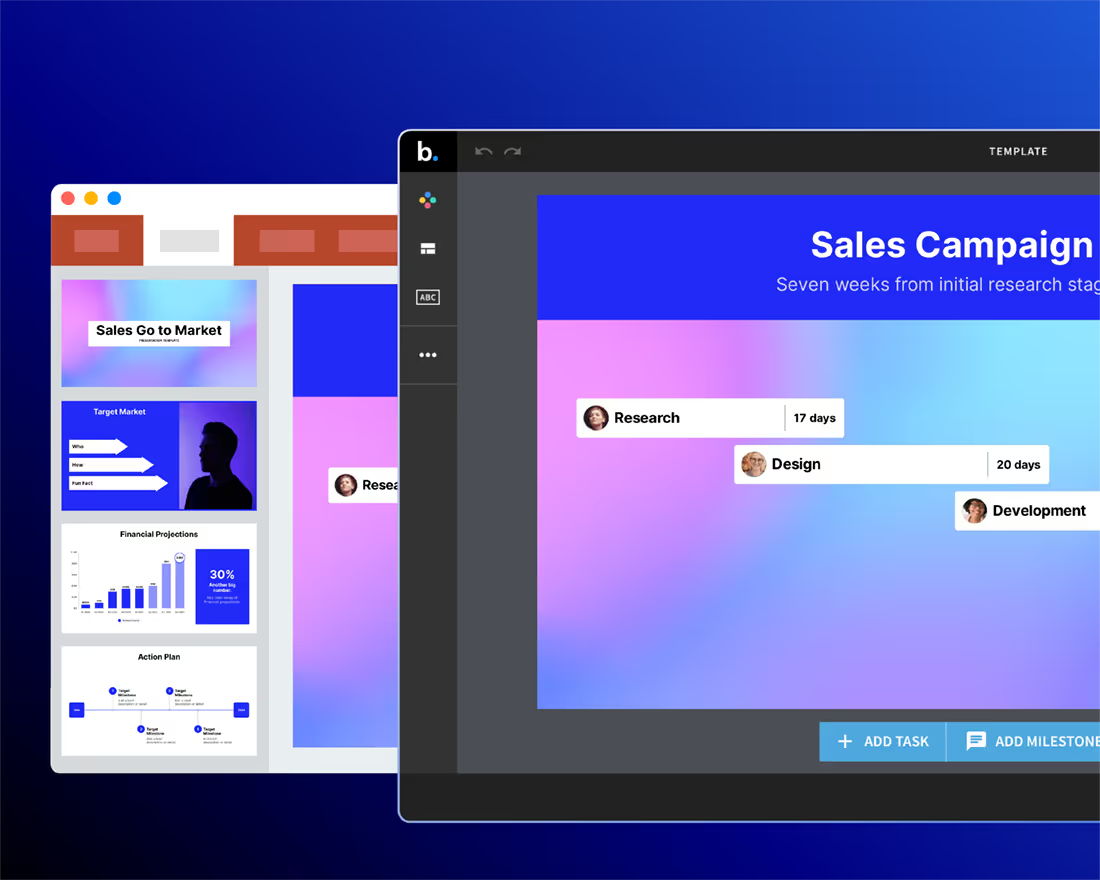
There is also another starting point coming into the experience: Beautiful.ai templates.
Users with access to AI generation will be able to choose a Beautiful.ai starter template and select Generate to adapt that structure to their topic. If they prefer the original template unchanged, they can still choose Create. That gives people who prefer starting from a proven presentation format another way into AI creation while putting Beautiful.ai’s library of professionally designed templates to work.
Conclusion: A Better Way to Create With AI
Create with AI started with a move away from one-shot deck generation. The updated Create with AI Workflow continues that work by making the workflow respond more intelligently to the person using it.
Come in with only a topic, and Beautiful.ai can help you define the presentation before drafting it. Come in with a finished outline, and you can get to the editor with fewer unnecessary steps. Bring a Brand Kit, and that context can influence the presentation earlier.
AI still provides the speed. You decide where it needs guidance and where it should get out of the way.
That combination is what makes an AI presentation useful for real work. The aim is not to generate the most slides in the fewest clicks. It is to spend less time correcting the first draft and more time finishing a presentation that says what you meant.
Try the updated Create with AI Workflow in Beautiful.ai.



.avif)
.gif)
.avif)
