.gif)

The fastest way to turn a Word document into a polished slide deck is to hand the drafting to an AI presentation maker. Paste the text from your doc, or add a PDF or URL, into Beautiful.ai’s AI assistant and it generates slide-by-slide content while Smart Slides handle the formatting. The first draft takes minutes, which leaves your remaining time for the part that actually needs you: shaping the story.
That matters because executives rarely have time to read long documents. Yet teams still rely on dense reports to communicate critical strategies, research, and recommendations. Whether you’re working with a market analysis, product roadmap, operational review, or project strategy, the challenge is the same: distilling a complex document into a clear, executive-ready presentation that communicates only what matters.
Great executive presentations don’t overwhelm. They simplify. They focus on decisions, trade-offs, and impact—not every detail that went into the work.
Here’s how to transform a long, complex document into a presentation leaders will actually read, understand, and act on.
Start with the executive question
Executives don’t review presentations to absorb background information. They review them to make decisions.
Before opening a slide, get clear on the one question your presentation must answer. What decision needs to be made? What does leadership need to understand immediately? What is the single most important takeaway?
This question becomes the backbone of your presentation. Every slide should exist to support it.
A helpful test: try summarizing your entire document in one sentence. If that sentence isn’t clear and confident, the presentation isn’t ready yet.
Distill the document to what truly matters
Long documents are built for completeness. Executive presentations are built for relevance.
As you review the source material, focus only on insights that directly influence a decision. Pull out the key findings, strategic implications, recommendations, high-impact metrics, and any meaningful risks or blockers. Everything else—background research, methodology, detailed analysis—still has value, but not on your main slides.
If a piece of information doesn’t change what leadership should do next, it doesn’t belong in the core deck.
Shape the story before you design slides
Strong executive presentations aren’t just summaries—they’re narratives with a clear beginning, middle, and end.
Most effective decks follow a simple arc: why this matters now, what the core problem or opportunity is, what the data shows, what you recommend, and what happens if action is taken (or not taken). From there, you can address risks, dependencies, and next steps.
When the story is clear, slide creation becomes far easier. You’re no longer deciding what to include, you’re deciding how best to express it.
Tools like smart templates or AI-powered assistants can help you outline this structure quickly, giving you a strong starting point that you can refine.
Translate text into visual clarity
Executives don’t want to read slides. They want to scan them.
Dense paragraphs should be transformed into visual signals: statement-based headlines that make a point instantly, charts that show trends at a glance, timelines that clarify sequencing, and simple frameworks that highlight priorities or trade-offs.
As a rule of thumb, if a block of text takes more than a few seconds to understand, it’s better suited for an appendix than a core slide.
Lead with an executive summary that stands alone
Executives often spend most of their attention on the first few slides, and sometimes only the first one.
That’s why your executive summary is critical. It should quickly explain what’s happening, why it matters, what you recommend, and what’s at stake. If someone reads only this slide, they should still walk away with a clear understanding of the situation and the decision required.
Think of it as the entire presentation, compressed into a single moment of clarity.
Use the appendix for depth, not the core deck
An effective executive presentation balances clarity with credibility.
The main deck should deliver the story cleanly and concisely. The appendix exists to support deeper questions. Detailed analysis, alternative scenarios, raw data, methodologies, and expanded charts all belong there.
This approach shows rigor and preparedness without forcing executives to sift through unnecessary detail.
What is the fastest way to turn a Word document into a slide deck?
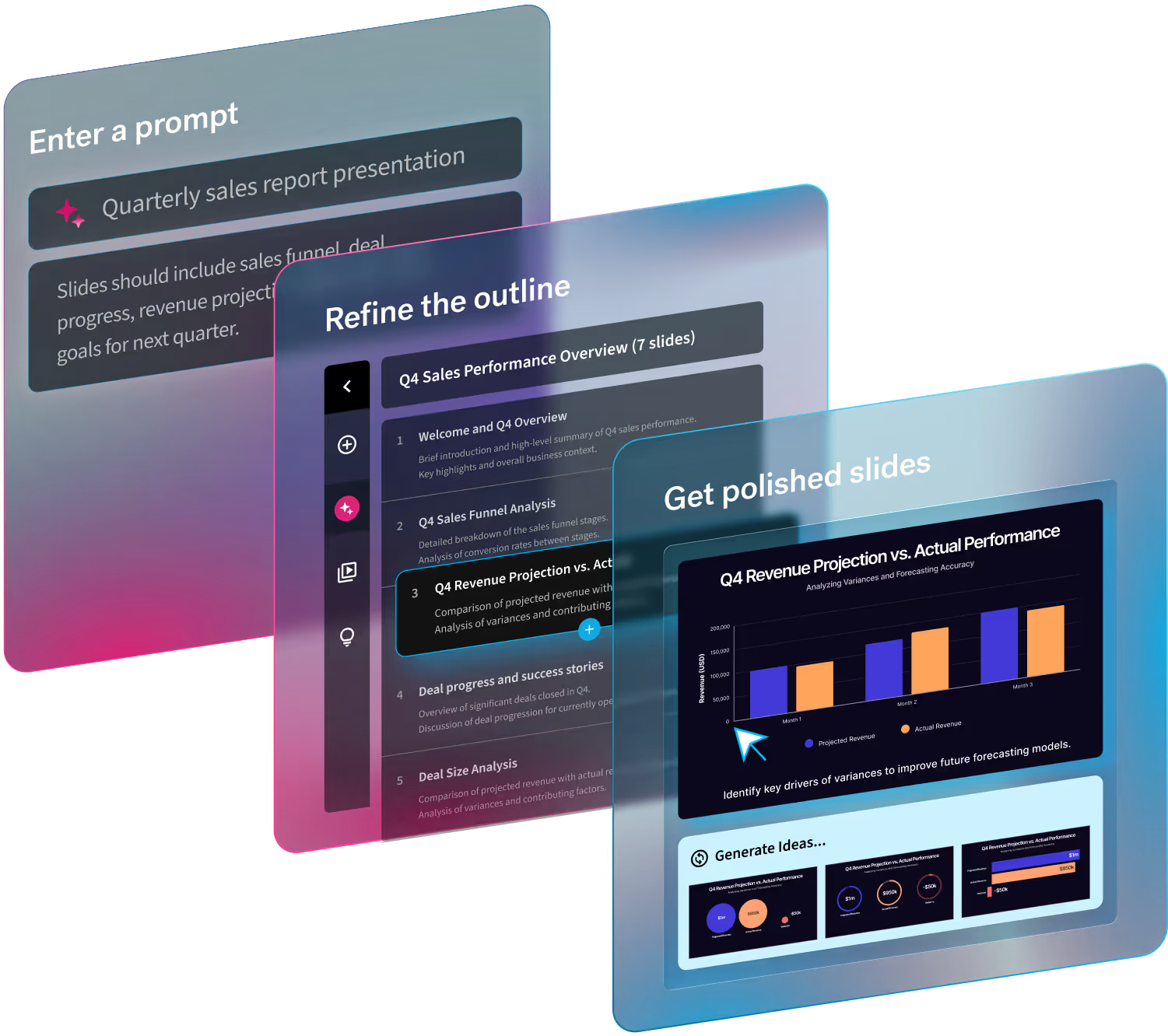
The fastest path is four steps, and the first draft takes minutes:
- Copy the text from your Word document, or save it as a PDF.
- Open Beautiful.ai’s AI assistant and add that text, the PDF, or a website URL as context for your prompt.
- Generate the deck. The AI turns your document into slide-by-slide content, and Smart Slides handle the formatting so the presentation stays on brand with a natural flow.
- Edit the draft, then present it or export it to PowerPoint if your stakeholders expect a .pptx file.
It’s the perfect workflow for transforming Sales, HR, and Marketing materials into visually stunning decks without creating a bottleneck. Teams use it to turn text-heavy documents such as news articles, marketing plans, research papers, onboarding guides, and training manuals into easily digestible slides. Because layout and wording are handled for you, your time goes to sharpening the message.
The result is faster production, and clearer presentations.
Should you build the deck in PowerPoint, Google Slides, or an AI tool?
If your team lives in PowerPoint, you already have a workable path: insert an outline from Word and PowerPoint turns your headings into slides, and Microsoft 365 Copilot can draft a deck from a document on plans that include it. The tradeoff is design time. You still format, align, and restyle every slide by hand, which is where deadline hours disappear.
Google Slides is free and easy for collaboration, but there is no document import, so you paste and format everything yourself.
AI presentation tools close that gap. Gamma and Canva both generate slides from pasted text, and both work well for casual decks. Beautiful.ai is built for the business version of this problem: it generates the draft from your text, PDF, or URL, Smart Slides keep every layout clean as you edit, brand controls keep the deck consistent with your company’s look, and you can export the finished deck to PowerPoint when a .pptx is required.
Edit with a decision-maker’s eye
Once the deck is built, the real work begins: editing.
Ask yourself whether each slide can be understood in five seconds. Check that every headline makes a clear statement, not just a label. Remove anything that doesn’t directly support the decision at hand.
The best executive decks feel confident and intentional. Nothing extra. Nothing vague.
Prepare to present, not just share
Executives aren’t passive audiences—they’re evaluators.
Before presenting, consider what objections might come up, which trade-offs need alignment, and which metrics matter most to this particular audience. Rehearse transitions and know exactly where supporting details live in the appendix.
Preparation turns a good deck into a persuasive one.
From long document to executive-ready deck
The fastest path takes three steps. Paste your document text, a PDF, or a URL into Beautiful.ai’s AI assistant, generate a slide-by-slide draft, then edit with a decision-maker’s eye. The narrative and visuals do the persuading while the AI and Smart Slides do the formatting, and dense material becomes an executive-ready presentation in minutes rather than days.
Try Beautiful.ai’s AI assistant for free today and turn your next long document into a finished deck well before the deadline.



.avif)